Courses / AI Images & Video / Lesson 1 of 7
Make Your Own Picture
Turn a vague idea into a picture you'd actually use, by writing an image prompt with the six parts every strong prompt needs.
Start with an example
Tasha runs a natural hair salon on Chicago’s South Side. She types “hair salon” into an image tool and gets a generic stock-style photo: an empty chair, a mirror, a bottle of shampoo. It’s not her shop, not her clients, and not usable.
She tries again, this time describing exactly what she wants to see:
Role: You are a professional lifestyle photographer.
Instructions: Create a photo of a stylist finishing a client’s braided updo.
Context: A bright, modern salon with plants and warm wood shelves. Both women are smiling and relaxed. Soft natural window light from the side. Realistic photo style.
Key Output: Vertical 9:16 for an Instagram Story. Leave empty space at the top for a headline. No text or logos in the image.
Now she has an image that looks like her brand and fits her post perfectly.
The tool didn’t change. Tasha’s description did. This lesson teaches you to describe images the way a photographer or illustrator would.
How an AI image model makes a picture
Image tools don’t search the internet for a matching photo, and they don’t paste together pieces of existing pictures. Most of them use a technique called diffusion. Understanding it explains why prompts matter so much.
- Training on image–caption pairs. The model studied hundreds of millions of images paired with text descriptions. It learned connections between words and visual patterns: what “golden hour” light looks like, how “shallow depth of field” blurs a background, what separates a “watercolor” from a “3D render.”
- Starting from noise. When you prompt, the model begins with an image of pure random static, like TV snow.
- Removing noise, step by step. Over dozens of steps, it removes a little static at a time, each step nudging the image toward something that matches your words. Shapes appear, then forms, then details.
- The prompt is the steering wheel. At every step, your text guides which patterns the model pulls out of the noise. Vague words give it little to steer by, so it falls back on the most average, common version of the subject.
Two practical consequences follow:
- Every generation starts from different random noise. That’s why the same prompt gives a different image each time. Some tools let you set a seed, a number that fixes the starting noise, so you can repeat a result and change just one word to see its effect.
- The model knows patterns, not facts. It has a strong sense of what “a hand holding a cup” usually looks like but no understanding of how many fingers a hand has. That’s why hands, text, and small details are where errors appear.
The takeaway: An image model is a pattern engine steered by words. The more precisely your words describe the patterns you want, the less the model falls back on averages.
Describe what you want to see
The most common beginner mistake is giving the tool a topic instead of a description.
| Topic (weak) | Description (strong) |
|---|---|
| “Summer” | “Kids running through a sprinkler on a city sidewalk, late afternoon sun” |
| “Healthy food” | “A colorful grain bowl with avocado, chickpeas, and greens on a white marble table, top-down view” |
| “Teamwork” | “Four coworkers laughing around a laptop in a sunny office, one pointing at the screen” |
A topic forces the tool to guess what picture you mean. A description tells it. Ask yourself: “If I were a photographer, what exactly would I point the camera at?”
The six parts of a strong image prompt
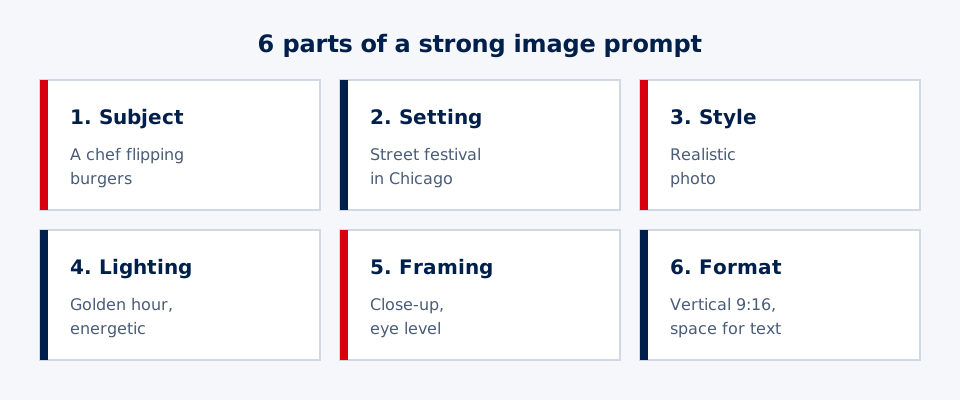
| Part | Ask yourself | Example |
|---|---|---|
| Subject | Who or what, doing what? | “A food truck chef flipping burgers” |
| Setting | Where, and what’s around them? | “At a summer street festival in Chicago, crowds in the background” |
| Style | Photo, illustration, 3D? | “Realistic photo” or “flat vector illustration” |
| Lighting and mood | How should it feel? | “Golden hour, energetic, joyful” |
| Framing | How close, and from where? | “Close-up, eye level, shallow depth of field” |
| Format | What shape? | “Square 1:1” or “vertical 9:16” |
You don’t need perfect wording. You need all six parts covered. Lesson 2 goes deeper on style, lighting, and framing.
Choose the right format
Different platforms need different shapes. Ask for the right one up front:
| Format | Shape | Best for |
|---|---|---|
| 1:1 | Square | Instagram and Facebook feed posts, profile images |
| 4:5 | Slightly tall | Instagram feed posts that take up more screen |
| 9:16 | Tall vertical | Stories, Reels, TikTok, phone wallpapers |
| 16:9 | Wide | Website banners, YouTube thumbnails, presentations |
If you plan to add a headline, say where: “Leave empty space at the top” or “Keep the left third clean for text.”
Which tool?
Many tools can make images from text, including ChatGPT, Google Gemini, Microsoft Copilot, Adobe Firefly, Canva, and Midjourney. Features, free limits, and quality change often, so pick one you can access and learn it well. The prompting skills in this course work in all of them.
Steer with follow-ups
The first image is a draft. Improve it one change at a time:
- “Keep everything the same, but make it nighttime.”
- “Same scene, but from farther away so we see the whole truck.”
- “Make the style a flat illustration instead of a photo.”
- “Remove the extra person on the left.”
- “Same image, but the chef should be smiling.”
Change one thing per prompt and say what to keep. If you change five things at once and the result is worse, you won’t know which change caused it.
Watch out for these problems
- Text in images: AI often misspells or warps words. Leave empty space and add text later in Canva or another design tool.
- Hands and faces: Look closely for extra fingers, warped eyes, or faces that melt into the background.
- Fake logos and signs: AI may invent brand names on shirts or storefronts. Remove them or regenerate.
- Real people: Don’t create images of real, identifiable people without their permission. Lesson 6 covers this in depth.
A worked example: three rounds to a flyer image
Jamal is promoting his family’s barbecue restaurant’s new catering service.
Round 1: “Barbecue catering.” The result: a generic plate of ribs on a checkered tablecloth, with an odd fake logo in the corner. Not usable.
Round 2 (all six parts): “Realistic photo of a backyard graduation party in Chicago, with a long table of barbecue catering trays: brisket, ribs, mac and cheese, and cornbread. Families laughing in the background, string lights, warm golden-hour light, eye-level, wide 16:9, empty space on the left third for text, no words or logos.” Much better, but the background people look a little blurry and strange.
Round 3 (one change): “Keep everything the same, but move the camera closer to the food so the people are only soft shapes in the background.” Now the food is the star and the odd faces are gone.
Jamal drops it into Canva, adds “Now Catering! Graduations, Reunions, Block Parties” in the empty space, and his flyer is done in 15 minutes.
Think deeper: how words become pictures
How does a sentence turn into an image? There’s a translator in the middle.
Your prompt first goes through a text encoder, which turns words into numbers that capture their meaning and associations. It learned those associations from hundreds of millions of images paired with captions. So “golden hour” ends up close to images with warm, low sunlight, and “editorial photograph” lands somewhere slightly different from plain “photo.”
The image itself is built in a compressed, simplified form, sort of a rough blueprint, and then a decoder turns that blueprint into full-size pixels at the end. Working with the blueprint is much faster than working with millions of pixels.
Many tools also have a hidden dial for how literally to follow your words. Turn it up and you get more accuracy, but sometimes stiff, oversaturated images. Turn it down and you get more natural results, but parts of your prompt may be ignored.
The big idea: an image model translates language into visual patterns. The clearer and more specific your words, the more control you have. Vague words give the translator nothing to work with.
Questions to sit with:
- If the model learned what “beautiful” means from millions of captions written by strangers, whose idea of beauty is it actually using?
- Two people type the same prompt and get different images. Who “made” each picture: the person, the AI, or the millions of artists whose work it learned from?
Project
Make one picture you’d actually use for your business, school, club, or personal brand. Use the template below, then improve it with at least two follow-ups. Save your first and final versions side by side, with the prompts that made them.
Prompt template
R - Role: You are a professional [photographer / illustrator / graphic designer].
I - Instructions: Create an image of [subject doing what].
C - Context: Setting: [where]. Mood: [feeling]. Style: [photo, flat illustration, 3D, watercolor]. Lighting: [soft morning light, neon, studio]. Colors: [brand colors].
K - Key Output: [square 1:1 / vertical 9:16 / wide 16:9]. Leave empty space at the [top/left] for text. No words or logos in the image.
Try it
Generate the same subject twice: once with a 5-word prompt, and once with all six parts of the template. Put them side by side and list three specific differences. Then make one follow-up that changes only the lighting, and see how much the mood shifts.
Your project
Make one picture for your business, school, or personal brand. Write your prompt with the template above, generate it, then improve it with at least two follow-up prompts that each change one thing. Save your first and final versions side by side with the prompts that made them.
Key takeaways
- A strong image prompt names six parts: subject, setting, style, lighting, framing, and format.
- Describe what you want to SEE, not just a topic or a feeling.
- Ask for the shape you need up front: square 1:1, vertical 9:16, or wide 16:9.
- Improve with follow-ups that change one thing at a time and say what to keep.
- Check text, hands, faces, and logos closely, and add words later in a design tool.
Finish your project and pass the knowledge check to complete this lesson.